


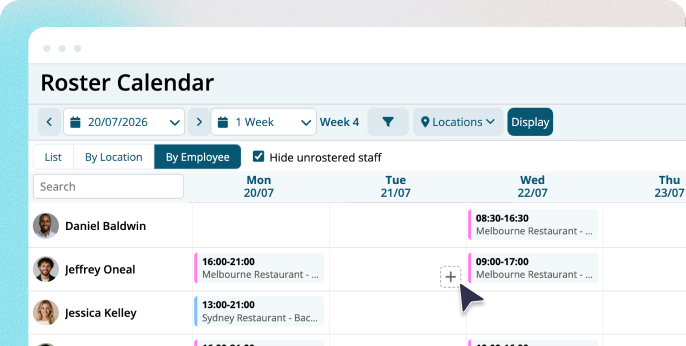
Most roster mistakes aren't made while you're building the roster. They're found after it goes out: a missed break, a short turnaround, someone who was on leave all along. The new Roster Calendar is built to help you find those problems first. You can build, check and publish your roster from one screen, and you can switch it on today from the Roster Calendar.
How does the new Roster Calendar help me build a better roster?
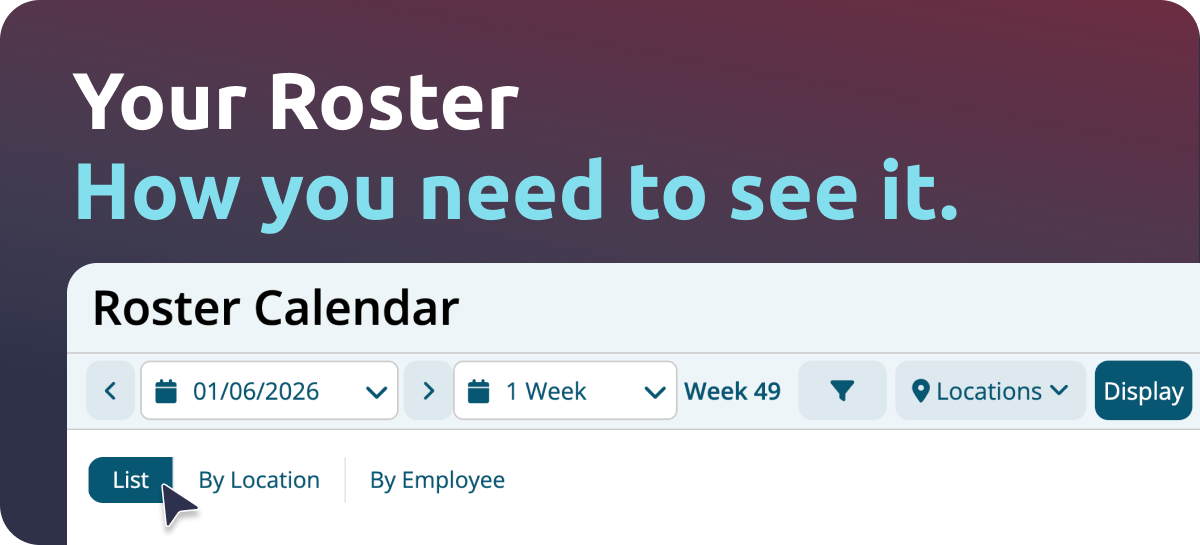
It lets you look at your roster the way the question needs. See it as a list, by location when you're covering sites, or by employee when you want to check that one person's week is fair, for anything from a single day to six weeks. Then build faster. Add shifts in a quick window, drag to select a group, then move, copy or paste them, even across weeks, or edit several shifts at once. If you roster across several sites, it pairs well with our multi-location scheduling.
How do I catch problems before my staff see them?
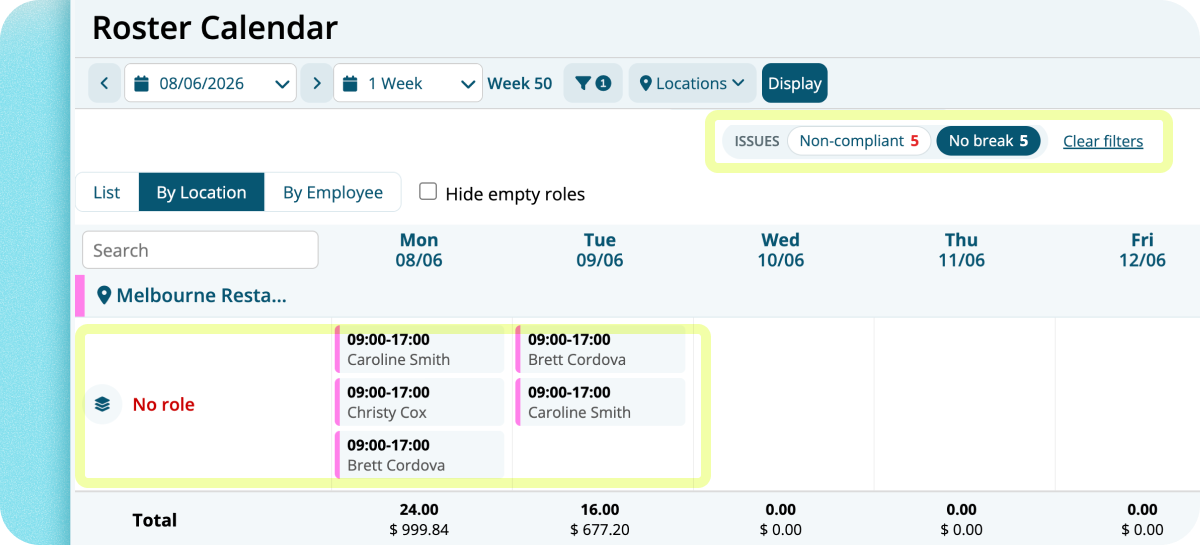
This is the biggest change. Filter your roster for the things that normally slip through: missing skills, no break, short rest, over hours, overlaps, and staff who are unavailable. You can also filter by status or shift type, such as open shifts, auctions and leave, or search for a person. Instead of hoping you've spotted everything, you can ask the roster where the problems are and fix them while it's still yours to change. If a shift lands during someone's leave, the calendar prompts you. The filters flag shifts against the rules and skills you've set up in Microkeeper, so they work best alongside your break compliance and skill and availability settings.
Can I check my roster cost before I publish?
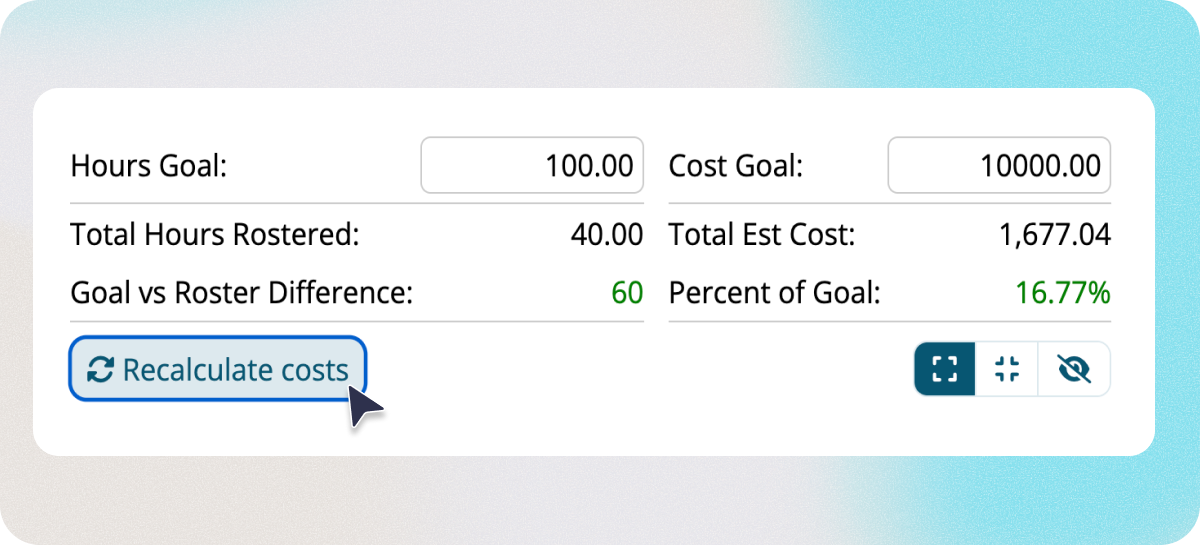
Yes. Shift costs are worked out by payroll, so the cost you see on the roster comes from the same place as the pay run. Set your hours and cost goals, keep the budget box open, shrink it or hide it, and recalculate costs when something changes. A roster that runs over budget is much easier to fix on Wednesday than to explain after payroll. It's an estimate, and it's only visible to the people you've given cost access.
How do I publish and tell my team?
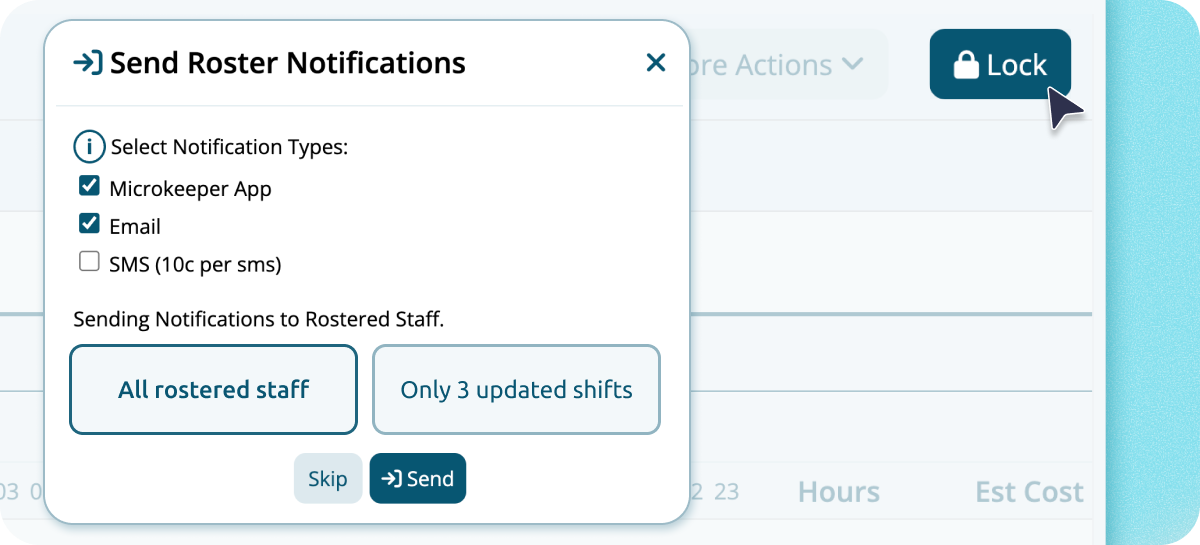
When the roster's ready, lock it, and lock several weeks at once if you've planned ahead. You'll get a confirmation step before it's final, then you choose how to tell your team: app, email or SMS, to everyone or only the people whose shifts changed. Nobody is notified while you're still editing, so staff never see a half-finished roster.
How do I try the new Roster Calendar?
Open the Roster Calendar and select New version (Beta). It's in beta, so we'd like to hear what works and what doesn't, and our support team, real people by phone and ticket, can help while you try it. For the how-to detail, the Roster Calendar guide covers every step.
Is anything different from the old calendar?
A few actions, including notifications, auctions, PDF and CSV export and Clone Week, work when you're viewing one week. Clone Week also now copies the whole week rather than selected days. The guide has the detail.
Ready to find the problems before your staff do?
If you're a Microkeeper customer, open the Roster Calendar and select the Beta version, or talk to our team if you'd like a hand. If you're comparing rostering software, book a free consultation or try Microkeeper free for one month.