


Most businesses don't run one payrun. They run a weekly one for the casuals, a fortnightly one for the kitchen, a monthly one for salaried staff, and once the business grows, another set for the second venue. Until now, Payruns treated each of those as a fresh job every time: pick the pay period, pick the staff, and hope you got both right. The new Payruns turns each one into a pay cycle you set up once, so every cycle and every ABN is waiting on one page when payday arrives. If you're still on the old Payruns page, you can access it by switching, and we're asking you to do that by 30 April 2027.
What changes when payroll runs in pay cycles?
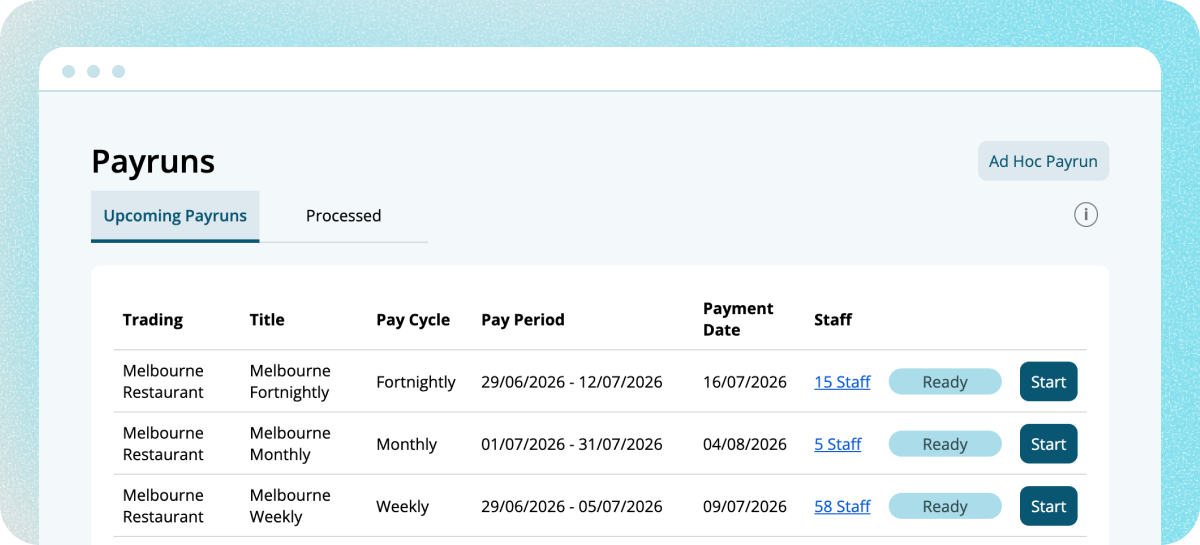
A pay cycle holds everything that stays the same from one run to the next: the pay period, the start and payment days, the staff it pays, the bank account the wages come out of, and who is allowed to run it. You set it up once. After that, the Upcoming Payruns tab shows the next run for every cycle, with its dates, how many people it pays and whether it's ready to go.
On payday, you work down the list instead of rebuilding the setup from memory. Click Start and the run and payment dates are already there. Your weekly casuals, fortnightly team and monthly salaried staff each have their own cycle, you can have as many cycles as the business needs, and each employee is paid in one cycle at a time. There's simply less to get wrong.
What if I run more than one business?
Then each business can have its own set of cycles. Add every ABN you trade under in your Global Settings, and each one keeps its own super, Single Touch Payroll reporting and accounting connection. One venue can sync to MYOB while another uses Xero. Every upcoming payrun shows the trading name it pays under, so you always know which business you're about to pay.
That means one login and one place to work, without one ABN's payroll bleeding into another's. If you want the background on why each ABN needs its own payrun, our post on payroll across multiple ABNs covers it.
Who should be able to see whose pay?
Probably not everyone. Head office usually runs the salaried pay, a site manager runs their own team's, and a bookkeeper might only look after one venue. With pay cycle access, you choose for each cycle whether it's open to the whole payroll team or only to the people you pick. Anyone who isn't picked doesn't see the cycle at all, including its payslips and reports.
So a site manager can run their weekly pay without ever seeing head office wages, and head office doesn't have to run everything just to keep pay private. Our access control FAQ explains how it sits alongside your existing permissions.
How do I switch to the new Payruns?

If you're still on the old Payruns page, you'll see a banner at the top of it. Anyone with access to Settings can switch your business over, and for most businesses it takes a few minutes.
- Open the Payruns page and click Switch Now in the banner.
- Check the pay cycle Microkeeper suggests. It's built from the payruns you've already run, using your current start day and payment days.
- Select the bank account your wages are paid from, then click Set Up Pay Cycle.
Nothing on that page is saved until you confirm, so you can look it over first.
Your past payruns, payslips and payments come with you, exactly as they were. You'll find them on the Processed tab, where you can still open them, view payslips and download files. Switching can't be undone, so give the suggested cycle a proper look before you confirm. Staff who run payroll but don't have access to Settings will see the banner too, and it asks them to check with someone who does.
How do I add more pay cycles, ABNs and access rules?
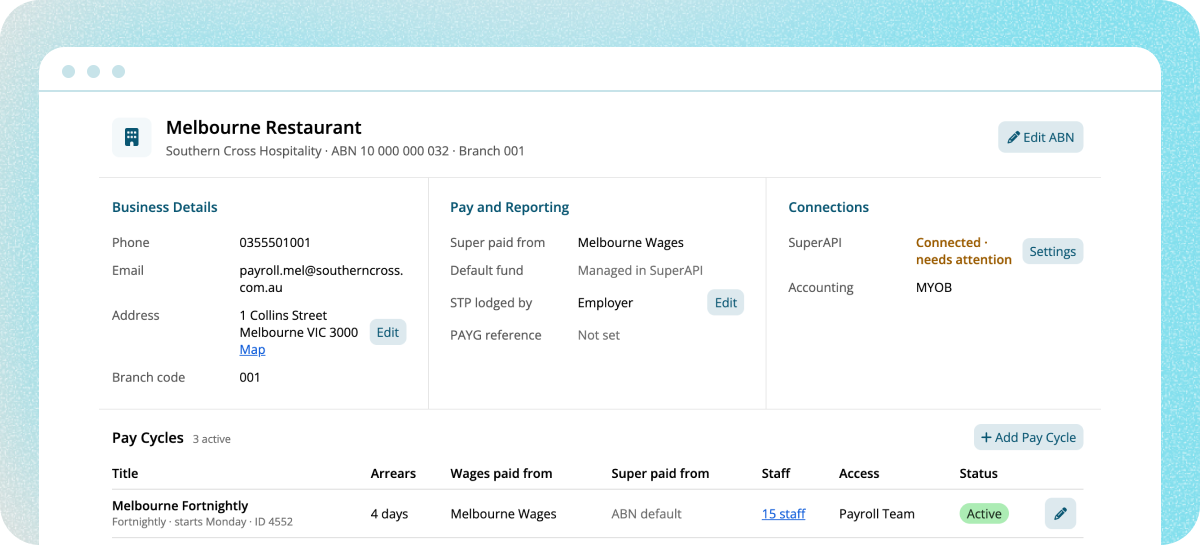
Once you’ve switched, go to ABN and Pay Cycles in your Global Settings. Each ABN has its own card showing its business details, and its pay cycles listed underneath with their pay period, bank accounts, staff and access.
- To add a pay cycle, set its pay period, the staff it pays and the bank account its wages come from.
- To control who runs it, use the Access column. Choose ‘Whole Payroll Team’, or ‘Selected’ and tick the people you want.
- To add another business, click Add ABN, then add that ABN's pay cycles.
From then on, your payruns are on the Payruns page. Open Upcoming Payruns, click Start on any pay cycle, and the run and payment dates are already filled in. Microkeeper checks the payment date before you go ahead. If you need to pay someone between payruns, the Ad Hoc Payrun button is at the top of the page.
What if I pay staff on different pay periods?
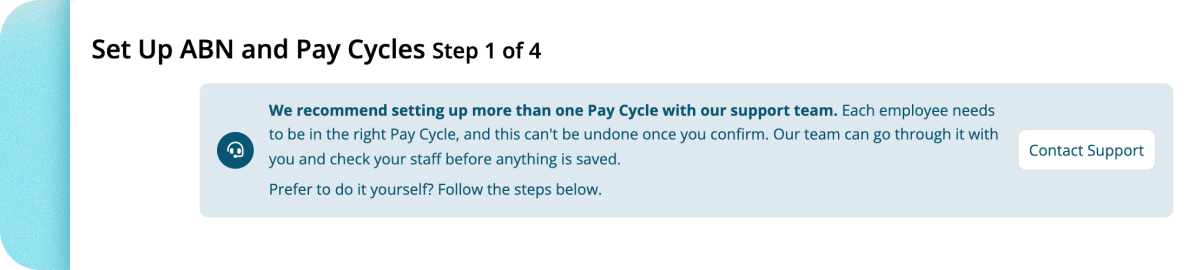
If you've run more than one pay period in the last 12 months, or you run the same pay period separately for different groups of staff, Microkeeper suggests a pay cycle for each one when you switch. It puts every employee in the cycle of the most recent payrun that paid them, and flags anyone worth checking.
Because every employee needs to land in the right cycle, and switching can't be undone, we recommend setting this one up with our support team. You'll speak to a real person, not a chatbot, and we'll check your staff with you before anything is saved. Contact our support team and we'll set it up together. If you'd rather do it yourself, Microkeeper walks you through it on screen.
When do I need to switch?
Please switch by 30 April 2027. The old Payruns page closes on 1 July 2027, the start of the new financial year, and switching early means you're not doing it in the middle of end of financial year reporting.
Quick answers
I joined recently. Do I need to switch? If your Payruns page already shows Upcoming Payruns, you have the new Payruns. Add cycles and ABNs from ABN and Pay Cycles in your Global Settings.
Can I add cycles or ABNs later? Yes, any time after you've switched.
What if I haven't switched by 1 July 2027? The next person with Settings access to open Payruns will be taken through setting up pay cycles before anyone can run a payrun.
Ready to run every pay cycle from one place?
If you're a Microkeeper customer, open Payruns and click Switch Now, or contact our support team if you'd like us to set it up with you. If you're comparing payroll software, book a free consultation or try Microkeeper free for one month.