

.svg)
.svg)


If you manage timesheets in Microkeeper, there’s a meaningful update waiting in your account. Timesheets V2 is a ground-up rebuild, new layout, new navigation tools, and a set of genuinely useful additions that change how you move through and manage your team’s hours day to day.
Here’s everything that’s new.
A two panel layout
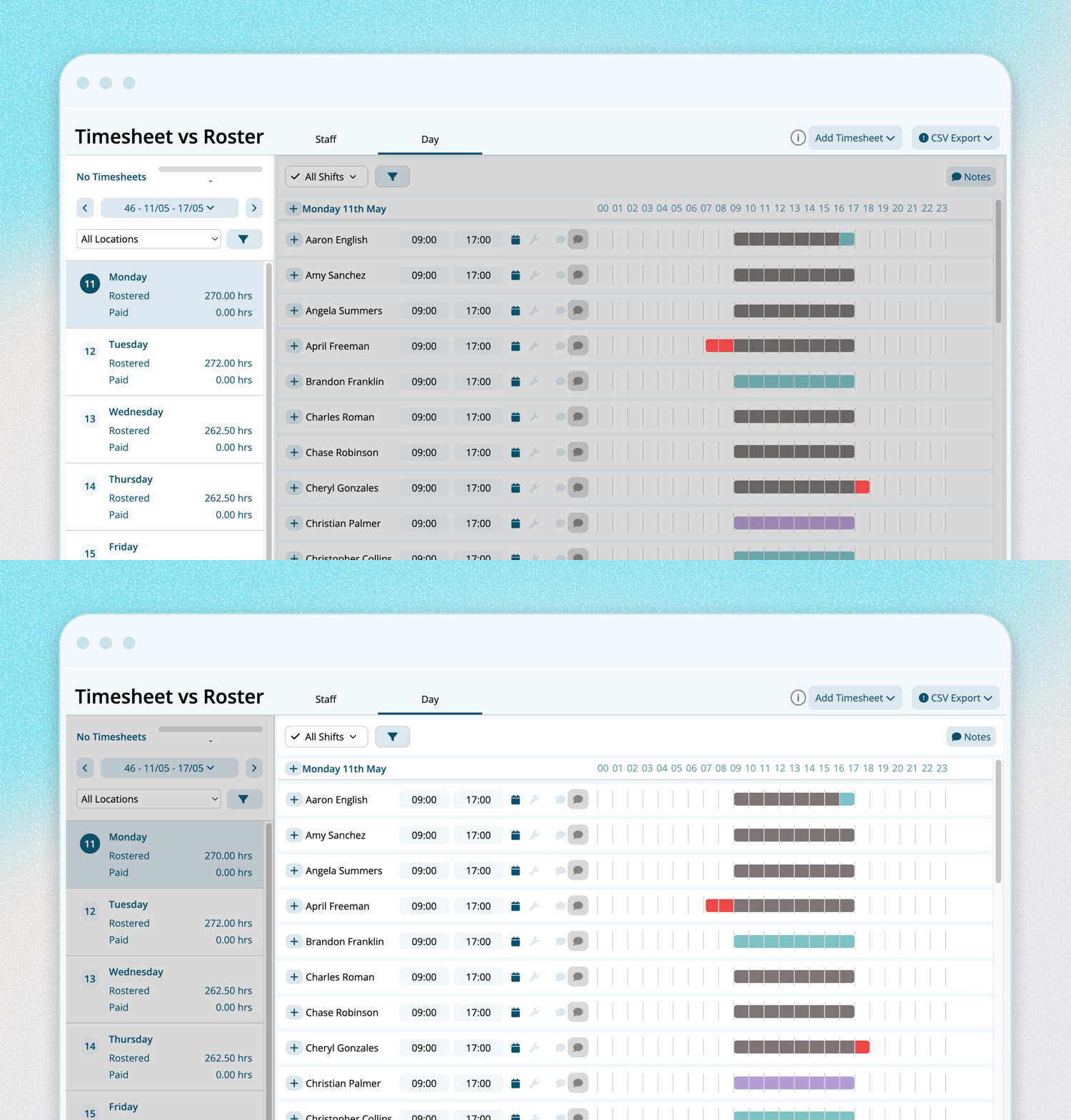
The first thing you'll notice is the layout. The updated interface uses a two-panel view — navigation on the left, the visual timeline on the right.
The left panel shows either a list of employees or a list of days, depending on which view you're working in. The right panel displays colour-coded bars for rosters, timesheets, leave, and public holidays, all visible at a glance without needing to open individual records.
What the colours mean:
- Grey: rostered hours and timesheets that overlap (a match).
- Blue: rostered hours that weren't worked. For example, rostered to start at 9 but clocked in at 10.
- Red: hours worked outside the roster. For example, rostered to finish at 5 but clocked out at 7.
- Purple: leave.
- Hatched pattern: public holidays.
- Orange: a shift that has been modified. Visible immediately without opening the record.

Hover over any bar and a tool tip shows you exactly what you're looking at.
Faster navigation
Moving between employees and days is noticeably faster in V2.
In the staff view, if your cursor is on the right panel, scroll your mouse to move between employees. If your cursor is on the left panel, use your keyboard arrow keys to move up and down through the list. Both methods are quicker than clicking through records individually, particularly when you're working through a large team.
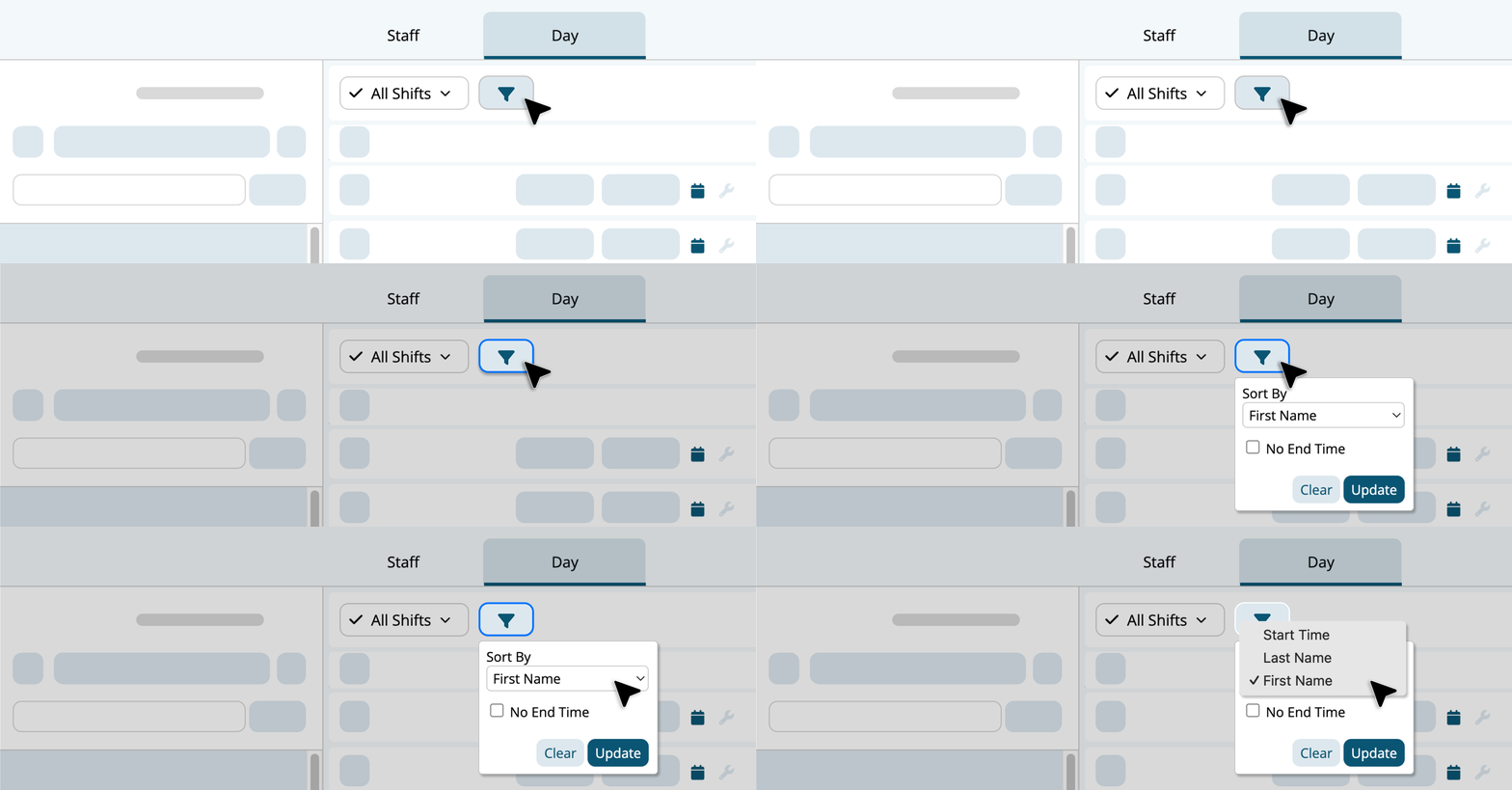
In the day view, there's a new sort filter, sort staff by first name, last name, or start time. Useful for when you've got a big team on a single day and want to work through them in a specific order.
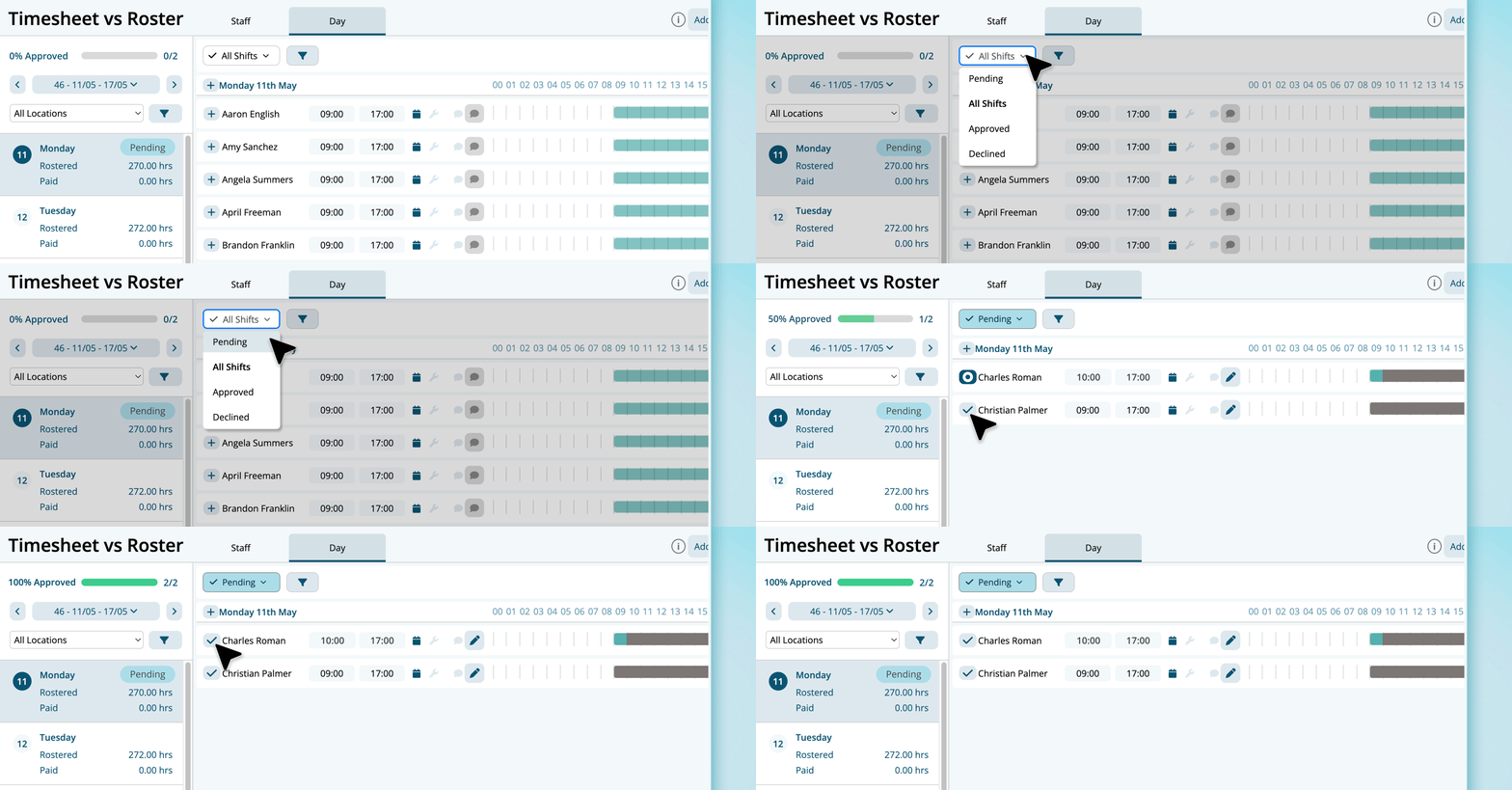
The Pending tab
This is one of the most practical additions. The new Pending tab filters your view to show only employees who have a timesheet waiting for approval, no scanning through everyone to find who needs action.

Each employee row also carries a Pending tag directly on it, so the status is visible at a glance before you even open the record. If approvals are part of your regular workflow, this tab alone will save meaningful time each pay period.
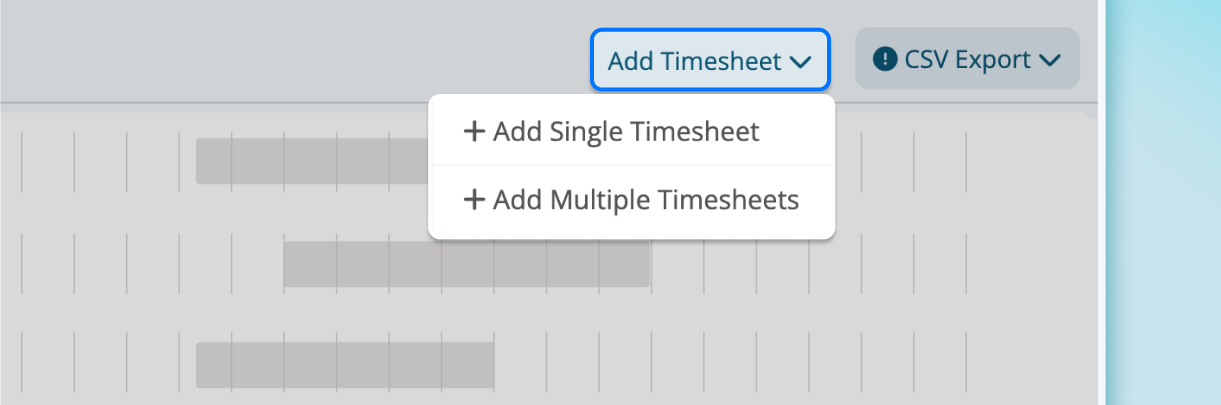
Adding timesheets, single or multiple
You can now add a single timesheet or multiple at once from the same dropdown. When adding multiple, you select the employees you're entering timesheets for and process them together, useful for bulk entry after a shift, particularly for managers covering large teams or casual staff.
Joint timesheets for split shifts
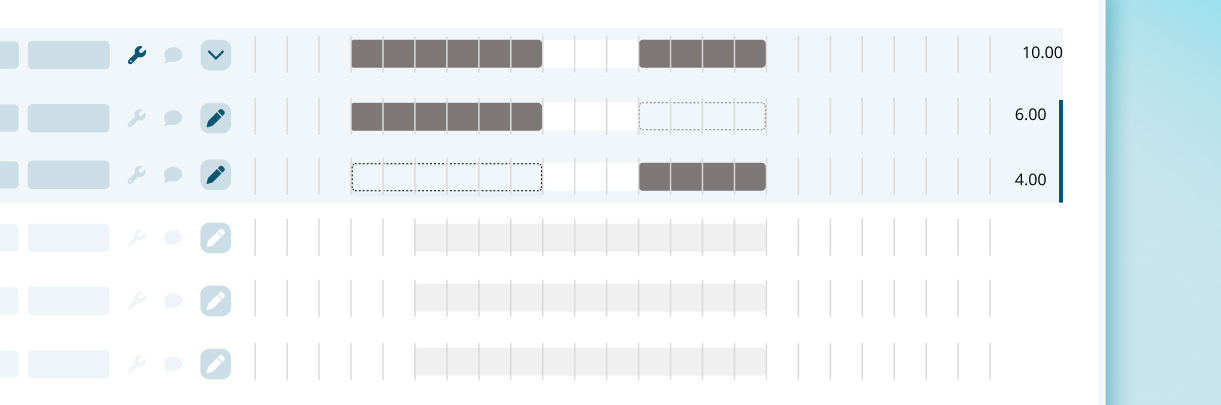
If an employee works a split shift, clocked off at 10, gap until 12, then back on, the old version treated those as two completely separate timesheets. V2 handles this differently.
Split shifts are now joined automatically into a single timesheet. The total hours are summed across both stints, and you can click the arrow to expand the record and see each sub-shift individually with its own start time, finish time, and hours.
Share a direct link to any shift
You can now copy a direct link to any specific shift. When someone opens it, they land straight on that record, no logging in and navigating manually. Useful for flagging a specific shift with a manager or following up on a timesheet that needs attention.

Notes at the week level
Notes can now be added directly in the timesheets view and apply to the whole week. Anything relevant to a pay period, context about a shift, a note for payroll, a flag for review, sits in one place and is visible when you need it.
Hide bars for large teams
If you're managing a large team, the visual bars can slow the page down. V2 includes a toggle to hide them. The view stays fully functional, you can still navigate, approve, and manage timesheets, and the page loads faster. Worth switching on if you regularly work across teams of 20 or more.
Where to find it
Timesheets V2 is available now. Head to Timesheets in your Microkeeper account and you'll see the new interface.
If you have questions or need a hand getting familiar with the new layout, our support team is available by phone and ticket.eal people, no bots.
.png)