


.svg)
.svg)


Microkeeper now records where each shift was worked and in what role, as well as the job. Every clock-on carries a Location, a Role and a Job, so you can see exactly where your labour cost goes: by site, by role and by job, without splitting timesheets by hand. For most teams the change at the clock is small, because the new boxes fill themselves in from the roster.
Why is it so hard to see labour cost by location, role and job?
A payroll total tells you what you paid. It doesn’t tell you which venue, which role or which job the money went to. Multi-site businesses usually answer those questions after each pay run, in spreadsheets, by splitting hours manually or by estimating. It’s slow, and the numbers are only as good as the person doing the splitting.
Until now, Microkeeper clock-ons saved only the job. That meant clocked shifts showed “No location” in reports, and the role wasn’t recorded at all. That has changed.
What does Microkeeper record on every shift now?
Each shift now answers three questions. Location is where the work happened. Role is the position the person worked as on that shift. A Job is the work or project the time belongs to. So a shift might read Warehouse, Picker, Stocktake.
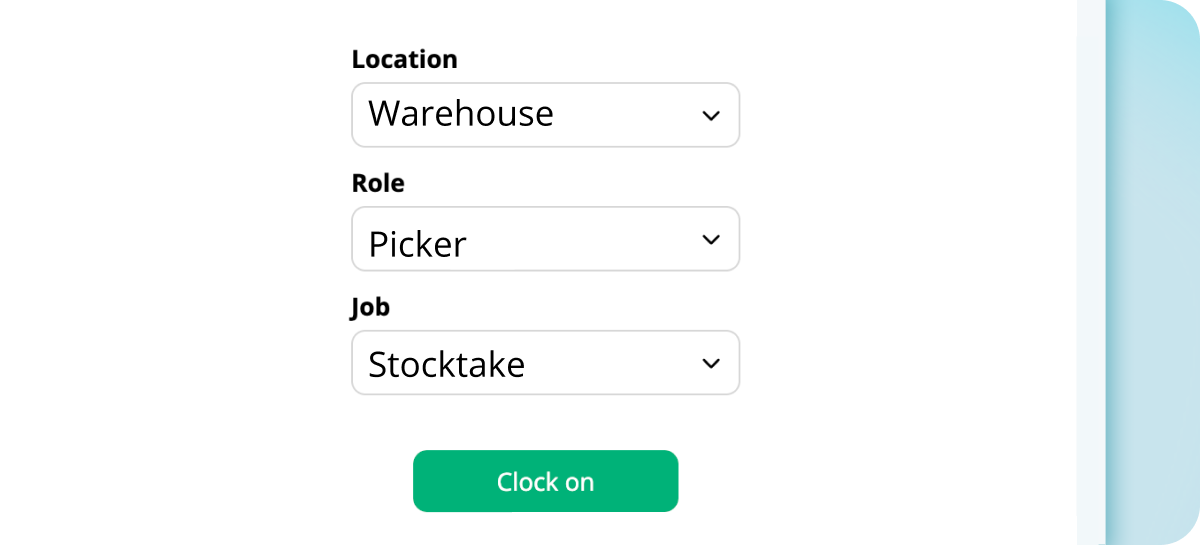
Those three details follow the shift into your timesheets, pay runs and reports. Pay lines carry location, Role and Job wherever you’ve turned the breakdown on, so you can look at cost by site, by role or by job. Your accounting exports and your Xero integration don’t change.
What changes when my team clocks on?
This is the part existing customers will want to know, and the answer is: not much. Only employees who clock on from the employee console, on the web or their phone, see anything new. They’ll see up to two extra boxes, Location and Role, above the Job box.
If a person is rostered, the boxes are already filled in. They clock on as they always have, and only change a box if they’re working somewhere different from their roster. If your business has just one location, it shows as a label rather than a box. Leaving a box blank is allowed. Staff who aren’t rostered use the defaults on their profile, or can choose for themselves.
.png)
The Switch button in the console now shows the current Location, Role and Job. Changing any of them ends the current shift and starts a new one.
.gif)
Every other way of clocking looks the same to your team:
For all these, the Location and Role come from the device setting, the rosters or the profile defaults.
What do admins need to do?
There are two jobs here: getting your setup right, and getting your team ready. The boxes are only as good as the setup behind them, and there are five things worth checking. They take about 10 minutes in total:
- Turn on Location, Role and Job under Payroll Breakdown in your global settings. Most existing businesses have Locations and Role off, because they were locked until now.
- Link your roles to your location. Without links, staff won’t see a Role box.
- Roster your staff with a Location, Role and Job. A rostered shift is what fills the boxes in when they clock on.
- Set profile defaults for staff who aren’t rostered, and turn on the default setting.
- Check your groups. A location or role assigned to a group is only offered to that group’s members.
The second job matters just as much: tell your team before the change reaches them. Most staff will only notice two extra boxes when they clock on, but someone who has never seen them before may stop and wonder whether they've done something wrong. A short heads-up means their first clock-on with the change goes smoothly. Let them know that the Location and Role boxes are usually filled in from the roster, that they only need to change them if they're working somewhere different, and that it's fine to clock on as normal if everything looks right. A message in your team chat, a line in the pre-shift briefing or a quick note on the noticeboard is enough. If you'd like wording to start from, try this:
“Your business now tracks where you work and in what role. The Location and Role boxes are usually filled in for you when you clock on. Only change them if you're working somewhere different from your roster.”
Full steps are in our Jobs and Cost centres guide, with more on locations, roles and clocking options. If you’d rather have someone walk you through it, our support team is made up of real people, by phone and ticket.
Who is this useful for?
Anyone whose labour cost doesn’t sit in one place. A hospitality group can compare what each venue spends on bar, floor and kitchen staff. A construction or trade business can see how many hours went into each job, and in what capacity. A healthcare or aged care provider can follow wages across sites and roles without rebuilding the numbers by hand.
It also fits neatly with the rest of the platform. Your rostering sets the Location, Role and Job, your timesheets record what actually happened, and payroll carries all three through to the pay run.
Frequently asked questions
- Do my staff have to fill in the new boxes?
- No. If they’re rostered, the boxes are already filled in. Leaving a box blank is allowed.
- Does my kiosk, fingerprint reader or NoahFace iPad need changing?
- No. It keeps working as it does today, and takes the Location and Role from the roster. To fix a device to a location, contact support.
- Why don’t my staff see a Role box?
- No roles are linked to their locations yet. You can link them on the Locations page.
- Does this change my Xero or accounting export?
- No. Your exports and your Xero integration work as they did before.
- Why are some of my staff being asked for their location?
- Some businesses use jobs that are only available near a particular location, so the browser needs the employee’s position to confirm it.
- Can I set pay rates by location or role?
- Not yet.
Ready to see where your labour cost goes?
If you’re already a Microkeeper customer, start with the Jobs and Cost Centres guide and check your setup, or contact our support team if you’d like a hand. If you’re not a customer yet, book a free consultation or start a free trial, and we’ll show you how it could work for your business.
.png)
.png)
.png)


